Food Photo Editing 101: Make Your Dishes Look Irresistible
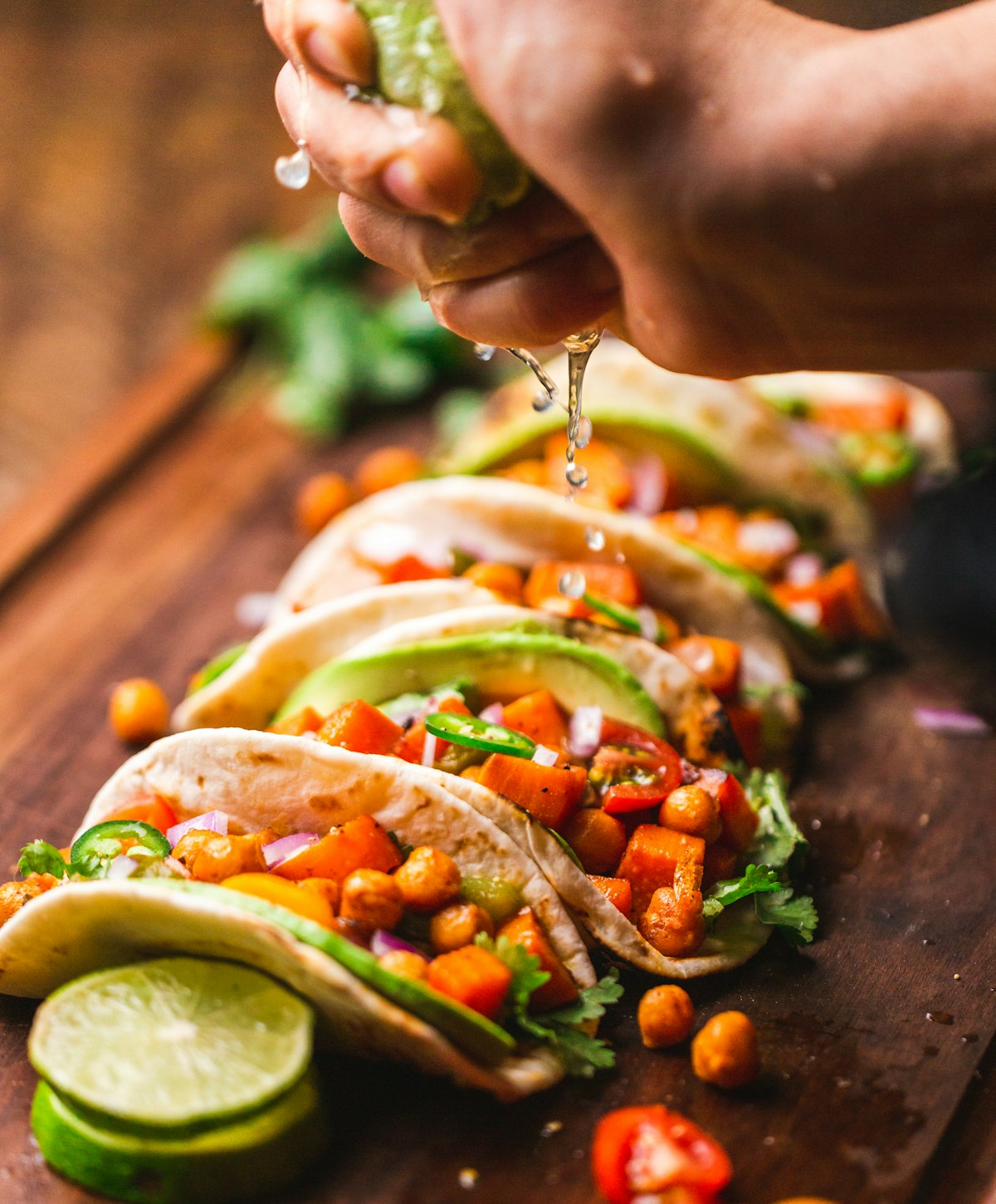
Even the best-composed food photo benefits from editing. The goal isn't to transform your image into something unrecognizable—it's to remove distracting flaws, bring out colors and textures that your camera didn't fully capture, and make the dish look as good on screen as it did in real life. Here's a practical guide to food photo editing.
The Best Free Apps for Food Photo Editing
- Adobe Lightroom Mobile (free tier): The gold standard for photo editing. Offers precise control over exposure, color, and detail. Free presets and powerful selective adjustment tools. Available on iOS and Android.
- Snapseed (free): Google's powerful editing app with a particularly useful selective editing tool for adjusting specific areas of an image. Great for removing distracting elements or brightening just the food without affecting the background.
- VSCO (free + paid): Known for its beautiful, film-inspired filter presets. Good for achieving a consistent aesthetic across your photos quickly.
- FoodieFixer.app: AI-powered enhancement specifically designed for food photos. Upload your image and the AI automatically optimizes all the key parameters—ideal when you need professional results without manual editing.
Step 1: Fix Exposure First
Exposure is the foundation of any photo. A well-exposed image has detail in both the brightest and darkest areas. In Lightroom:
- Exposure: Adjust the overall brightness. For food photos, slightly brighter than "correct" often looks more appetizing.
- Highlights: Reduce highlights to recover detail in bright areas (shiny sauces, white plates, cheese).
- Shadows: Lift shadows to add detail in dark areas without losing the mood.
- Whites & Blacks: Set whites to the highest level before clipping, and pull blacks down slightly for contrast depth.
Step 2: Correct White Balance
Incorrect white balance is one of the most common reasons food looks unappetizing in photos. A yellow or green color cast makes food look old or unwell. White balance adjustment brings colors back to neutral:
- Temperature: Slide toward blue to cool down overly warm/yellow photos from tungsten lighting. Slide toward yellow to warm up cold, blue-tinted photos.
- Tint: If your photo has a green cast (common under fluorescent lighting), slide the tint slider toward magenta to neutralize it.
A quick trick: in Lightroom, use the eyedropper tool and click on something that should be white (a napkin, the plate rim). The app will automatically correct the white balance based on that reference.
Step 3: Enhance Color Selectively
Rather than boosting overall saturation (which makes everything look oversaturated and fake), target the specific colors that matter most in your food photos using HSL (Hue, Saturation, Luminance) adjustments:
- Reds and oranges: A small boost makes meats, tomato-based dishes, and proteins look richer and more appetizing.
- Greens: A slight luminance boost makes herbs and vegetables look fresher without looking artificial.
- Yellows: Boosting yellow saturation slightly enriches butter, eggs, pastries, and cheese.
Step 4: Add Sharpness and Texture
Sharpness makes food textures pop—the crispy edges of a roast, the surface of a macaroon, the flaky crust of a croissant. In Lightroom's Detail panel:
- Increase Sharpening to 60–80.
- Hold Alt/Option and drag the Masking slider until only the food edges are white—this applies sharpening only to the important areas, not the smooth background.
- Add a touch of Texture (the Texture slider, distinct from sharpening) to enhance surface details without adding artificial noise.
Step 5: Crop and Straighten
A well-executed crop can dramatically improve a photo's composition. Crop to the rule of thirds, remove distracting edge elements, and ensure horizontal and vertical lines are straight (especially for overhead flat-lay shots where a slightly off-kilter table surface will be obvious).
When to Use AI Instead of Manual Editing
Manual editing gives you maximum control but takes time. AI enhancement with FoodieFixer.app is ideal when:
- You need to edit many photos quickly
- You don't have editing expertise
- The photo has complex lighting issues that would take significant skill to fix manually
- You need consistent results across a large batch of images
Many food businesses use both: FoodieFixer.app for speed and consistency across their catalog, and manual editing for hero shots that require artful, precise attention.